Manual mode
Manual Submission is the lowest-friction usage path: no command line and no Agent — you pick a tool on the Analysis Tools page, fill in the form, and submit the task.
Typical flow
Tool catalog → select tool → fill parameters → choose files → submit task → inspect logs → download results
1. Browse the tool catalog
Open the Analysis Tools page; tools are grouped by domain:
- Genomics: sequence alignment, variant calling, gene annotation…
- Transcriptomics: differential expression, co-expression, alternative splicing…
- Epigenomics: peak calling, methylation analysis, chromatin accessibility…
- Proteomics: sequence analysis, structure prediction, interaction networks…
- Plotting & visualization: volcano plots, heatmaps, enrichment bubble plots, network graphs…
- Database queries: cross-database ID mapping, gene functional annotation, regulatory evidence retrieval…
Alongside the large set of single-step tools, the catalog also carries two kinds of “multi-step” entries:
Native workflows
The platform ships 5 native multi-step workflows that bundle the stages of a standardized pipeline into a single submission:
| Workflow | Stages covered | Submission |
|---|---|---|
| RNA-seq | QC → trimming → alignment → quantification → DE → enrichment | Direct submission from the tool catalog |
| ATAC-seq | QC → alignment → filtering → peak calling → (optional IDR / differential) | Direct submission from the tool catalog |
| ChIP-seq | QC → alignment → peak calling → signal tracks / annotation / motif / GO-KEGG (optional) | Direct submission from the tool catalog |
| scRNA-seq | quantification → QC filtering → dimensionality reduction → clustering | Direct submission from the tool catalog |
| GWAS | intent review → QC → kinship + PCA → five-model association → annotation / plots → report delivery | One-page form in the frontend |
Verified direct submissions expand into a task chain: you fill the form once and the platform automatically creates the parent task and per-stage subtasks in order — the Tasks page shows progress for the whole chain. GWAS uses a dedicated one-page frontend form: fill it once, pass the intent review, and the same full task chain is generated.
See Native workflows for details.
One-click pipeline tools
Gene family analysis, homologous gene identification, synteny analysis, and more are also packaged as one-click pipeline tools: fill in species sequences and annotations once, and the platform automatically chains the search, identification, motif, and phylogenetic tree stages. See Homologous genes & gene families.
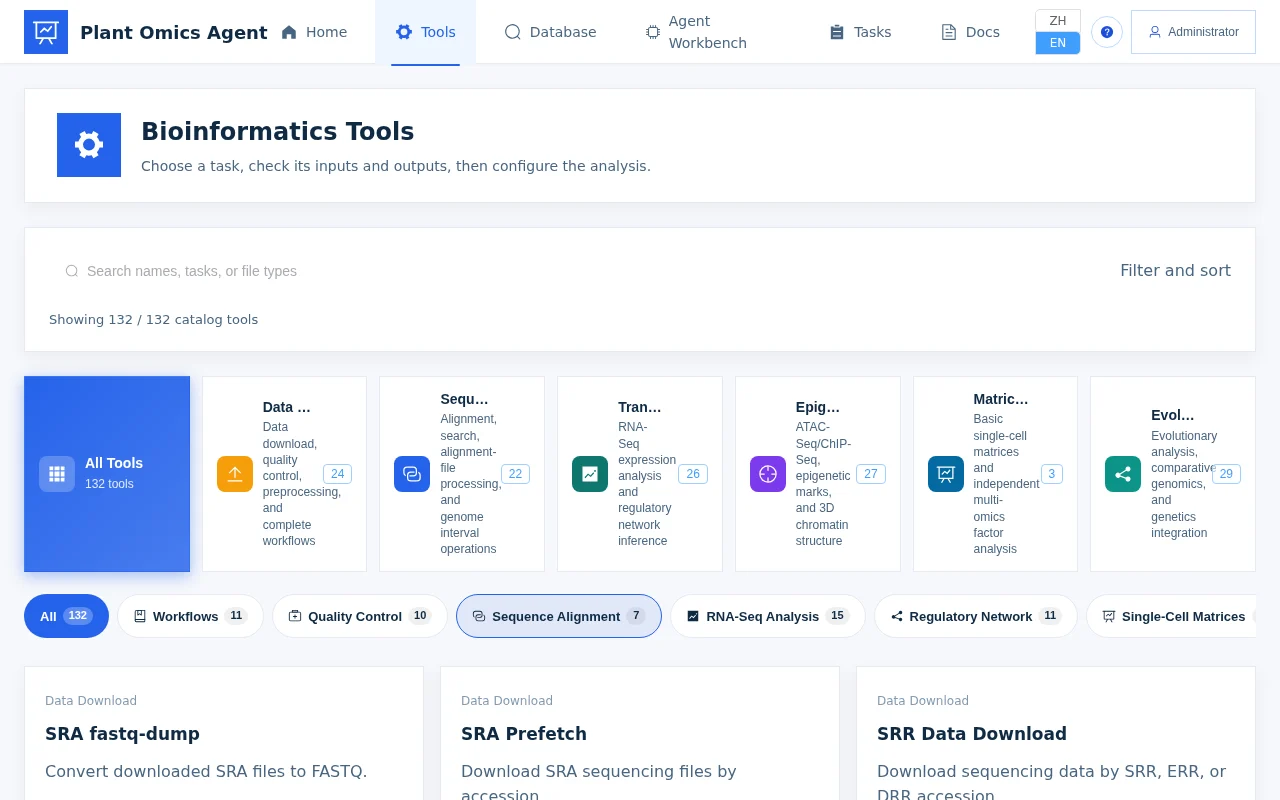
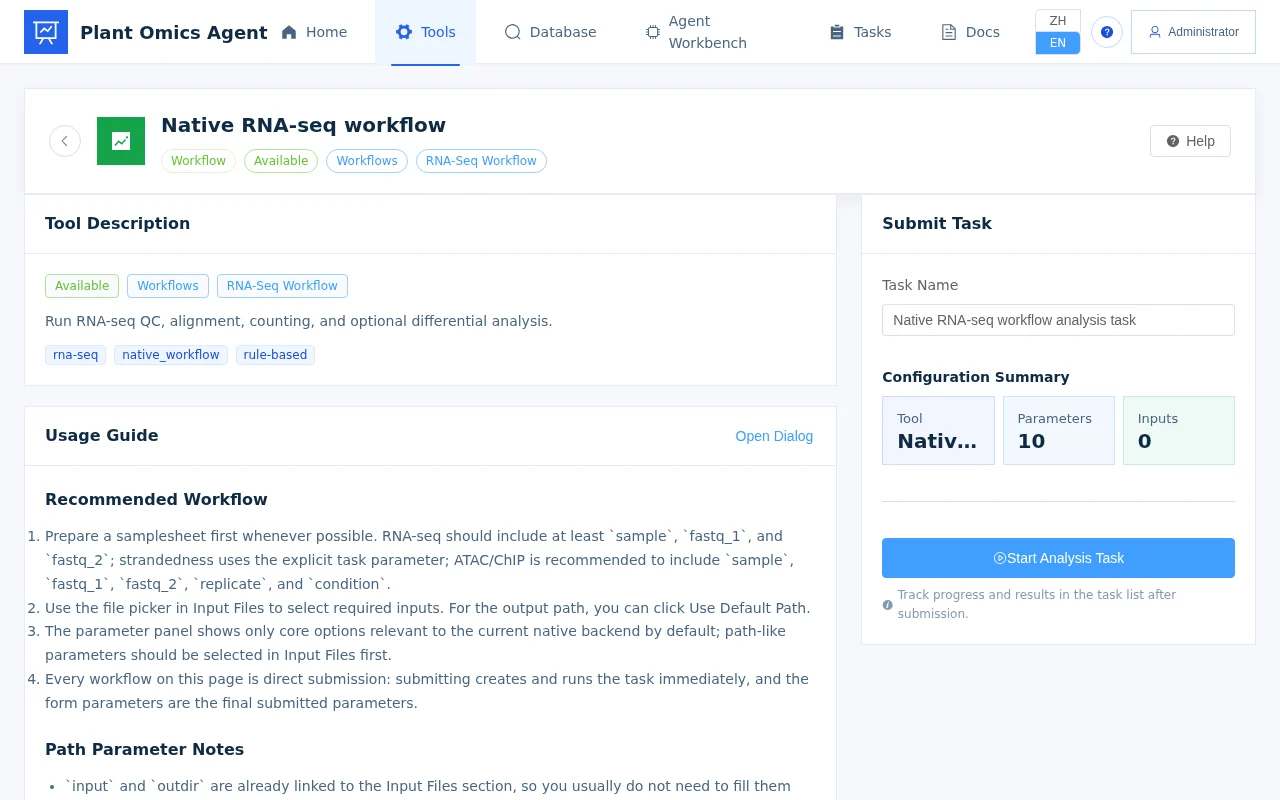
2. Open the tool detail page and fill the parameter form
Click a tool to open its detail page, where command-line parameters are rendered as a fillable form:
| Parameter type | Form control | Notes |
|---|---|---|
| Text / number | Input field | Supports defaults and range validation |
| Enum | Dropdown | Restricted to allowed values |
| Boolean | Toggle / checkbox | true / false |
| File | File picker | Select from uploaded files |
| Output path | Auto-filled | Usually no need to change |
- Required fields are marked with a red asterisk
*; - Hover over a parameter name for its full description;
- Forms auto-validate ranges and enums.
3. Select input files
File parameters are chosen from File Management:
- Upload: drag-and-drop or click to upload; single files up to 100 GB with chunked transfer;
- Formats: FASTA, FASTQ, BAM/SAM, BED, GFF/GTF, VCF, CSV/TSV, TXT, and other common formats;
- Preview: after upload you can preview the first lines of text files online.
Tip: upload files before opening the tool form — the file picker automatically lists everything you’ve uploaded.
4. Submit the task and track it
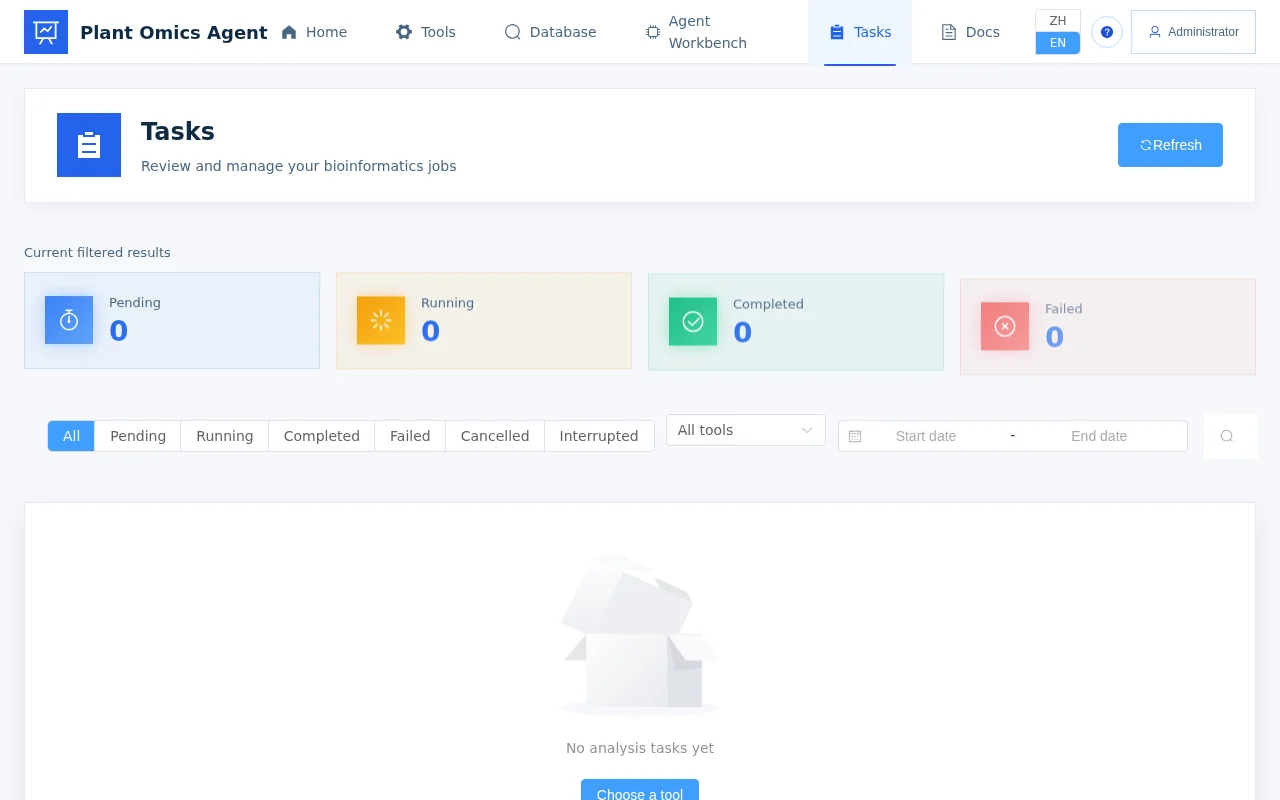
Fill in the parameters and click Submit. A single-step tool creates one task; a native workflow creates a task chain (a parent task plus per-stage subtasks). On the Tasks page you can:
| Action | Description |
|---|---|
| View status | queued → running → success / failed (task chains show each stage separately) |
| View live logs | Real-time scrolling stdout/stderr while running |
| View the artifact list | All output files listed after completion |
| Download artifacts | Single-file or packaged download |
| Preview results | Text and image artifacts previewable online |
Task status flow: queued → running → success / failed. For failed tasks, check the error log to locate the cause, adjust the parameters, and resubmit.
5. Provenance and reproducibility
Every task records:
- Parameter snapshot: the complete parameter values at submission time, guaranteeing reproducibility;
- Execution logs: full stdout/stderr;
- Artifact list: all output files and their paths;
- Tool version: the version of each tool used.
Tasks submitted by the Agent leave the same records — any task, from any path, is traceable.
How this relates to the Agent
The tools you call manually are the same tool ecosystem the Agent reaches via MCP. The differences:
| Dimension | Manual mode | Agent mode |
|---|---|---|
| How you work | You pick the tool and fill parameters | The Agent picks tools and assembles parameters for you |
| Best for | Single tool calls, precise control | Multi-step orchestration, exploratory analysis |
| Learning curve | Low (form-guided) | Just write natural-language instructions |
Whenever manual is inconvenient, switch seamlessly to Agent-assisted mode.
Next steps
- Native workflows: an end-to-end RNA-seq walkthrough.
- GWAS end-to-end: multi-step genetic analysis submitted from a one-page form.
- Use cases: end-to-end examples to follow.